iOS 26 Tracking Configuration Guide
iOS 26 has features enabled by default that can interrupt tracking. These features typically block the install goal from triggering, because Safari has built in features that will prevent tracking features from working as intended.
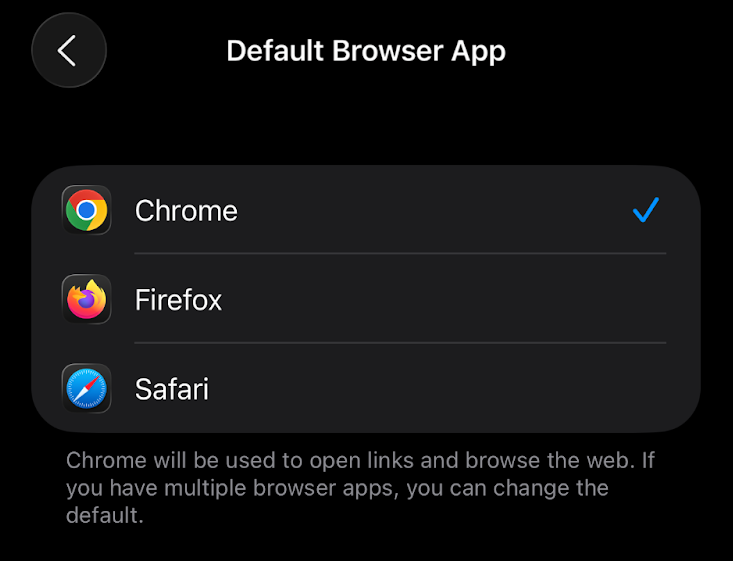
If you use an iOS device with iOS 26 (released September of 2025), you will need to change your default browser to Google Chrome to ensure that tracking works correctly.
Steps to Configure Chrome as Default Browser
- Go to the app store and search for Google Chrome.
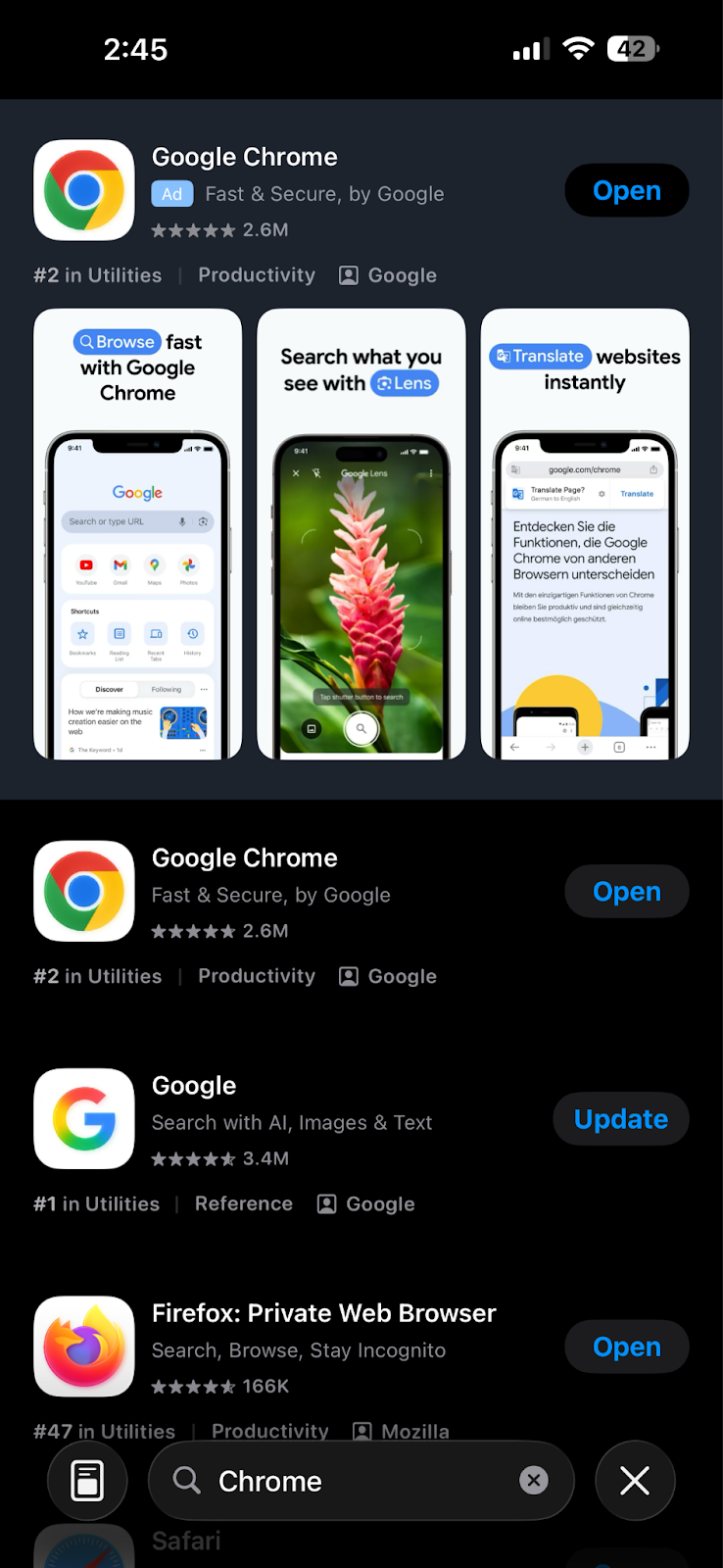
- Once downloaded, open the settings app.
- Go to Apps, then select Google Chrome.
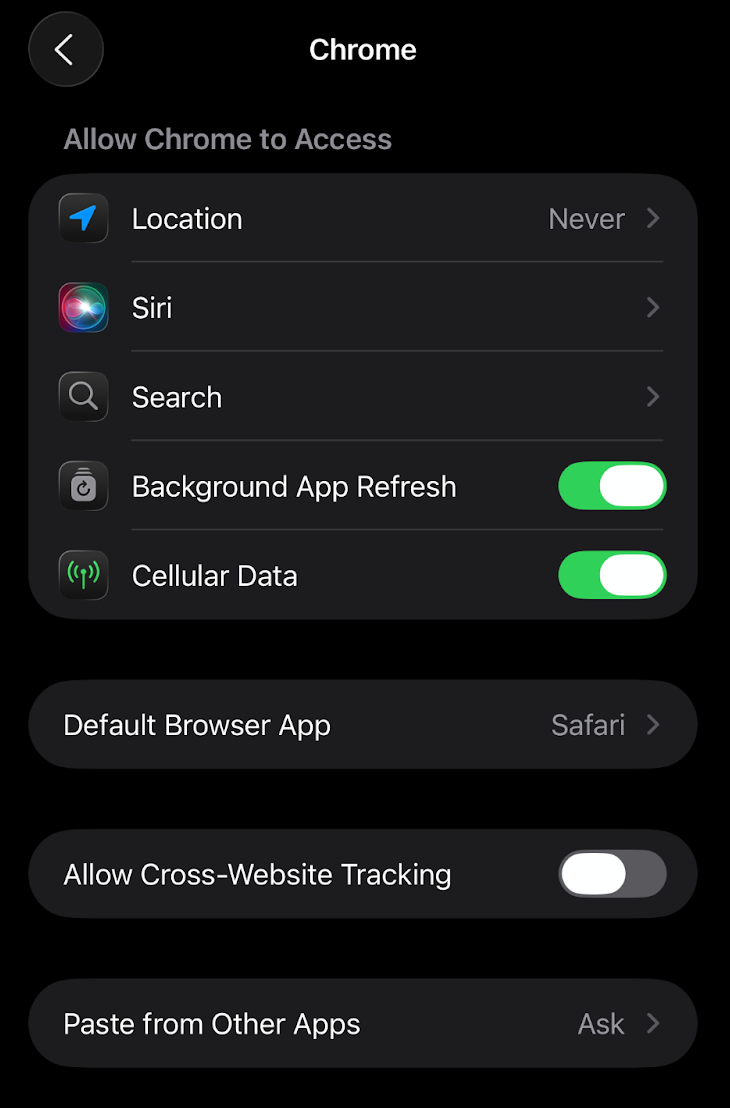
- Click Default Browser, then select Chrome.