Offerwall Integration Guide
There are three available methods to integrate the AdGem Offer Wall into your website or app.
- Direct Link
- iFrame
- WebView
Requirements
Before you Begin:
- Must have an active AdGem account
- The minimum user device Operating System requirements are Android 9.0 and higher and iOS 15.8 and higher
- In order for your app to have access to AdGem's offers, you will need to ensure your app is approved in the AdGem system. App setup and approval instructions can be found HERE. By default, your app will not be enabled on offers until you have completed the intital integration steps. Please reach out to your dedicated Publisher Support Advocate with any questions.
Step 1 - Creating a New Property
1. Click on Properties & Apps in the Left Nav
2. Click on the New Property Button
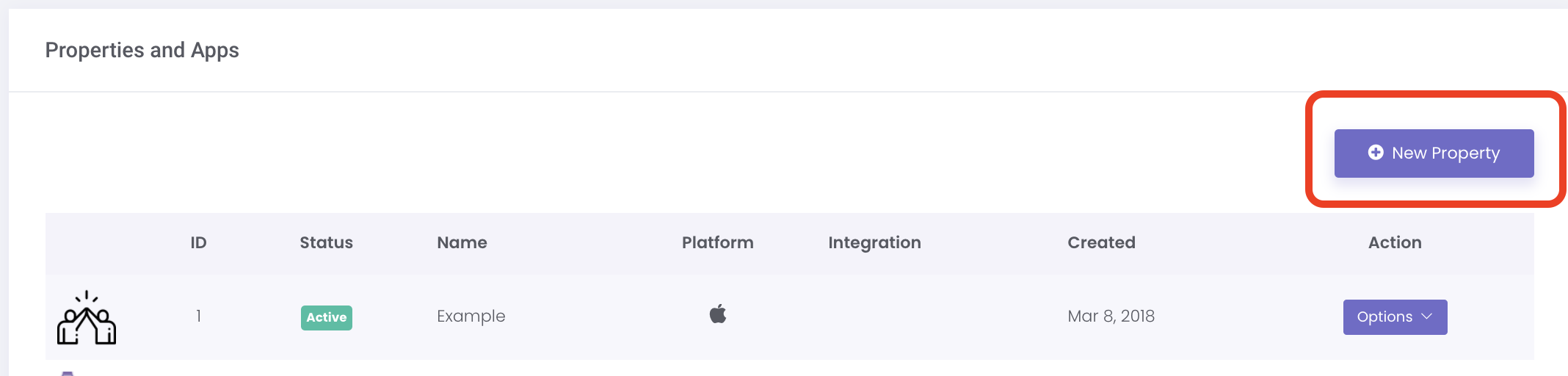
You must have a unique Property/App ID for each website you want to integrate the Offer Wall on. For example, if you have multiple website URLs, they each must be setup separately from the AdGem Dashboard.
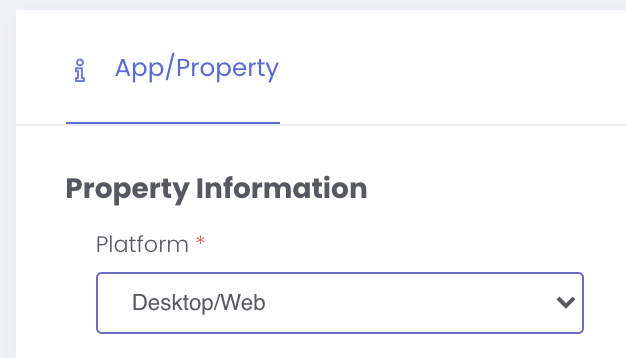
3. Select Desktop/Web from the Platform dropdown, complete and create the property.
Step 2 - Edit Property Information
View Property Information
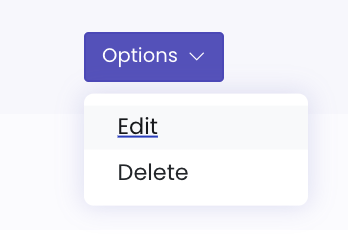
-
Click
Options>Edit
-
Navigate to the
Offerwalltab.

Required Fields in the Offerwall Tab
- The
Currency Name(singular and plural) must be filled in for the offerwall to render properly. - The
Multipliervalue must be applied. The multiplier reprsents the amount of virtual currency to reward the user for every $1 earned in Publisher Payout.- If the multiplier is less than 10, by offerwall will show
decimalvalues only and cannot be rounded.
- If the multiplier is less than 10, by offerwall will show
Step 3 - Integration links
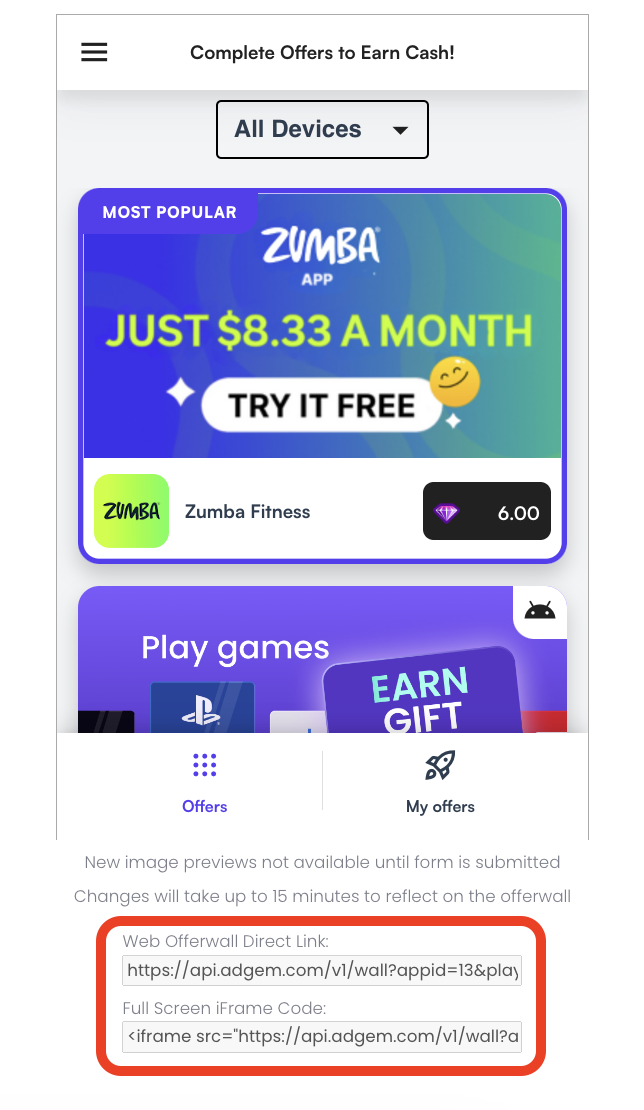
Once on the Offerwall settings page, you can find the integration links (Direct Link & iFrame) to add to your website’s Offer Wall underneath the preview. Additional WebView examples are provided HERE.
Dashboard Provided Links
Direct Linkwill be labeled "Web Offerwall Direct Link"iFramewill be labled "Full Screen iFrame Code"
Required Parameters to pass to the iFrame, WebView, or Direct Link URL (if traffic is “in-app”)
When possible, please append the following parameters:
| Mobile Advertising ID | Description |
|---|---|
gaid |
Google Advertising ID, available when the developer is using Google Play Services |
idfa |
Apple Advertising ID, available when the user has not limited ad tracking |
Optional Parameters to pass to the iFrame or Direct Link URL
Note: All parameter names and their values are case-sensitive.
| Parameters | Details |
|---|---|
app_version |
The version of your app where the click originated |
device |
The user’s device type, for example ‘Moto E Plus’ |
device_name |
The user’s device name |
ip |
The IP Address for the user who completed the offer |
useragent |
The User Agent from the user’s default browser app |
os_version |
The user’s Operating System version number |
platform |
The platform this user’s device is using, for example ‘ios’ |
c1 |
A custom parameter value as set by the publisher |
c2 |
A custom parameter value as set by the publisher |
c3 |
A custom parameter value as set by the publisher |
c4 |
A custom parameter value as set by the publisher |
c5 |
A custom parameter value as set by the publisher |
iFrame & WebView Code Samples:
Service Response
IMPORTANT: Replacing playerid
The offerwall url must be modified to replace the dummy parameter {playerid} with your parameter that represents the unique player as used internally in your application. This identifies the player so that virtual currency can later be attributed to their account via the callback request. The player ID has to remain constant (for the unique player in your application) so that players are prevented from completing an offer more than once, and are able to receive their rewards.
NOTE: Missing playerid
Please note that tracking url clicks that do not contain a playerid value will be redirected to a 404 error page.
REQUIRED: Player ID Structure
All playerid values that you return should only use lowercase alpha numeric values. A good playerid value may look like: abc-123-efg-456, but should NOT look like: aBc-123-Efg-456.
Your playerid should be alphanumeric and should not include emojis or any special characters. The max character limit for the playerid value is 256.
REQUIRED: App ID Structure
The app ID cannot be removed from the click URL structure. Without the app ID as a passed parameter, the offerwall will fail to load.
NOTE: User Agent Parsing
AdGem uses the user agent to determine the player device/platform. Without this field, we will not be able to determine the correct targeting logic, or mobile user player experience when loading the offerwall. Manipulating or overriding the user agent will result in a poor player experience.
Updated on December 23, 2025